

If the Replay meeting bot isn’t joining your meetings, work through these steps from top to bottom. Most issues are resolved by checking your calendar connection and auto-record settings.Documentation Index
Fetch the complete documentation index at: https://docs.replay.sale/llms.txt
Use this file to discover all available pages before exploring further.
Getting to Meeting Bot Settings
To access your meeting bot settings, navigate to Coach → Settings → Meeting Bot.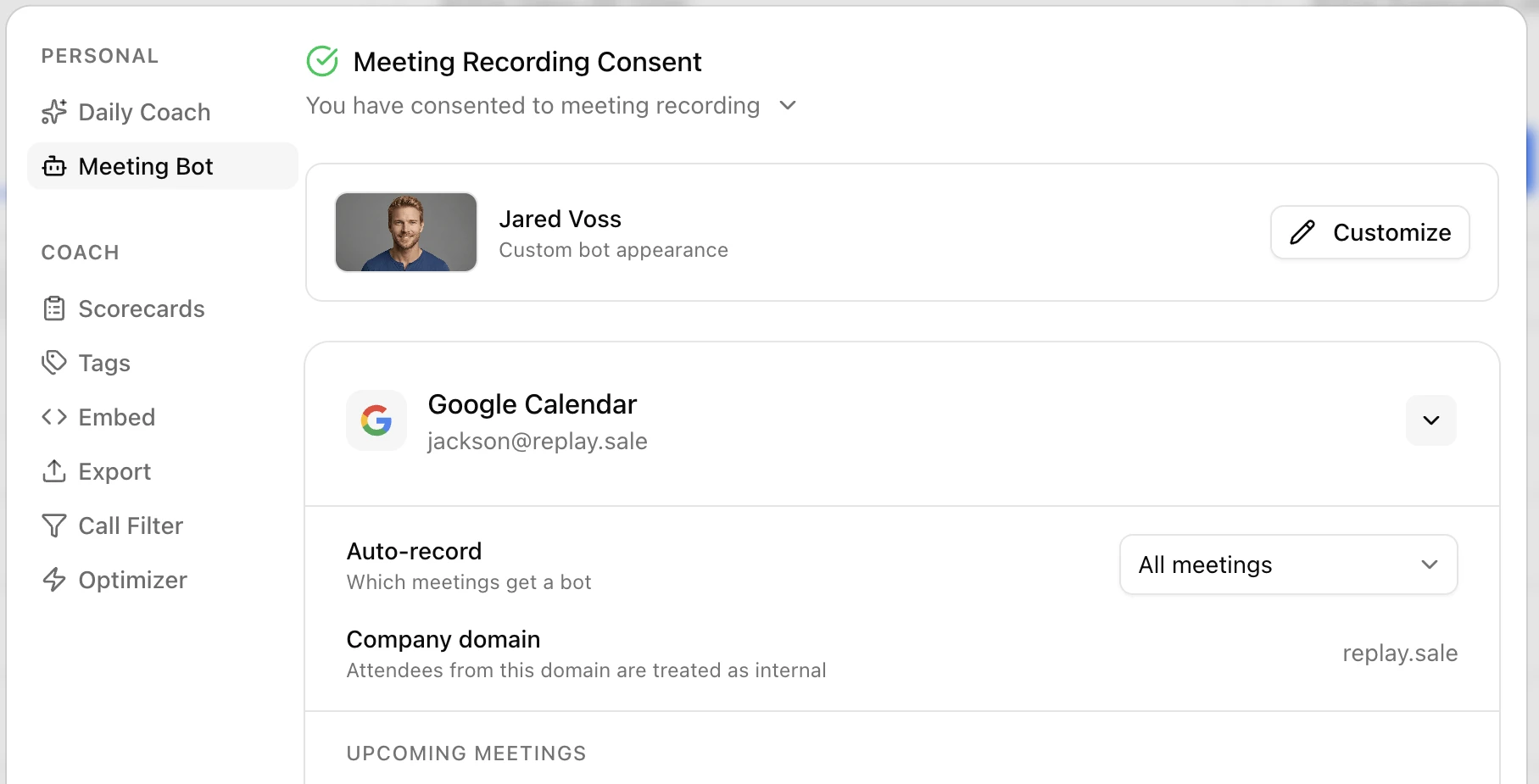
Step 1: Check Your Calendar Connection
The most common reason the bot doesn’t join meetings is that your Google Calendar isn’t connected.Calendar is not connected
Calendar is not connected
If you see a Connect button next to Google Calendar, your calendar hasn’t been linked yet.Fix: Click Connect and follow the Google sign-in prompts to authorize Replay to access your calendar. After connecting, your calendar will sync automatically — this may take a moment.
Calendar shows 'Disconnected'
Calendar shows 'Disconnected'
If you see a warning that says “Your Google Calendar has been disconnected. Please reconnect to continue auto-recording meetings”, your calendar connection was lost.Fix: Click the Reconnect button and re-authorize access through Google.
Calendar shows 'Syncing'
Calendar shows 'Syncing'
Right after connecting, your calendar shows a Syncing indicator while Replay imports your upcoming meetings. From that point on, Replay keeps your calendar in sync via real-time webhooks from Google — there’s no background polling.Fix: Wait a minute for the initial sync to complete. The page refreshes automatically when it’s done. If meetings still look out of date later (a webhook was missed, you just changed a meeting, etc.), use the Resync now button (see Step 4 below) instead of waiting.
Step 2: Check Your Auto-Record Settings
Once your calendar is connected, make sure the auto-record setting matches which meetings you want the bot to join.
Auto-record is set to the wrong option
Auto-record is set to the wrong option
The Auto-record dropdown controls which meetings automatically get a bot. If it’s set to the wrong option, the bot won’t join the meetings you expect.Fix: Click the Auto-record dropdown (labeled “Which meetings get a bot”) and select the right option:
- All meetings — Bot joins every meeting on your calendar
- External meetings — Bot only joins meetings with people outside your organization
- Internal meetings — Bot only joins meetings with people inside your organization
- No meetings — I’ll record manually — Bot won’t auto-join any meetings; you’ll need to send it manually
Auto-record is set to 'No meetings'
Auto-record is set to 'No meetings'
If auto-record is set to “No meetings — I’ll record manually”, the bot won’t join any meetings from your calendar automatically.Fix: Change the setting to All meetings, External meetings, or Internal meetings depending on your preference.
External / Internal filter is picking the wrong meetings
External / Internal filter is picking the wrong meetings
If you’re using External meetings or Internal meetings and the bot is joining the wrong ones (or skipping meetings it should have joined), check the Company domain field below the Auto-record dropdown.Replay uses your company domain to decide who counts as internal. By default this is inferred from the Google account you connected (
jane@acme.com → acme.com), but if you connected a personal Gmail or a shared inbox, the inferred value will be wrong and every attendee at your real company will look external.Fix: Type your real company domain (e.g., acme.com) into the Company domain input and press Enter or click away. A confirmation toast appears when it saves. Any attendee whose email ends in that domain is now treated as internal; everyone else is external.Step 3: Check Upcoming Meetings
Even with the right auto-record settings, individual meetings can be toggled on or off.Recording is turned off for a specific meeting
Recording is turned off for a specific meeting
In the Upcoming meetings section, each meeting has a toggle switch. If the toggle shows Off, the bot won’t join that meeting.Fix: Find the meeting in the list and switch the toggle to On so it shows Recording. You’ll see a confirmation that the bot has been scheduled.
Meeting shows an info icon instead of a toggle
Meeting shows an info icon instead of a toggle
If a meeting shows an info icon instead of a toggle switch, it means the meeting doesn’t have a video link attached.Fix: Make sure your calendar event includes a meeting link (Google Meet, Zoom, etc.). The bot can only join meetings that have a video conferencing URL.
No upcoming meetings are listed
No upcoming meetings are listed
If the upcoming meetings section says “No upcoming events found”, your calendar may still be doing its initial sync or you may not have any upcoming meetings with video links.Fix: Wait for the initial sync to finish. If you have meetings scheduled but they don’t appear, click Resync now (Step 4) to pull the latest events. If they still don’t appear, try disconnecting and reconnecting your calendar (Step 5).
Step 4: Click “Resync now”
If your upcoming meetings look out of date — for example, a meeting you just created or changed isn’t showing up — click Resync now in the Meeting Bot settings. This forces Replay to pull your latest events from Google instead of waiting for the next webhook.When to use Resync now
When to use Resync now
Use this any time the upcoming meetings list looks stale: a brand-new meeting isn’t there, a cancelled meeting still appears, or you just changed a meeting’s video link. The button has a short cooldown after each click.
When Resync now isn't enough
When Resync now isn't enough
“Resync now” pulls the latest meeting list, but it can’t fix a calendar that has actually been disconnected. If you see a Disconnected warning, jump to Step 5 (Disconnect and Reconnect).
Step 5: Disconnect and Reconnect Your Calendar
If the steps above didn’t resolve the issue, disconnecting and reconnecting your calendar can reset the connection and fix deeper sync issues.Disconnect your calendar
Scroll down in the Meeting Bot settings and click Disconnect Calendar. Confirm the disconnection.
Reconnect your calendar
Click Connect next to Google Calendar and sign in with your Google account again.
Wait for sync
After reconnecting, wait for your calendar to finish syncing. Your upcoming meetings should reappear with the correct recording settings.
Sending a Bot Manually
If you need to record a specific meeting without using auto-record, you can send a bot directly using the Send Bot to Meeting section.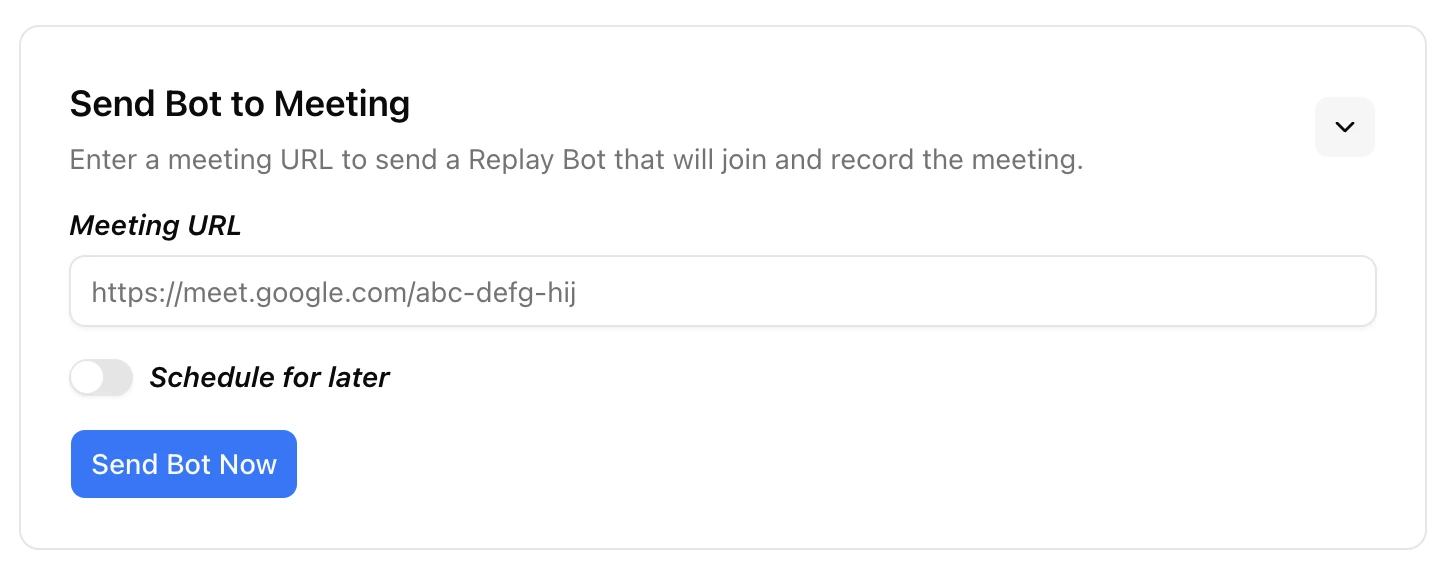
Still Not Working?
If none of the above resolves the issue:- Make sure your meeting has a video link (Google Meet, Zoom, etc.) — the bot can’t join meetings without one
- Try a different browser or clear your browser cache
- Contact support at hello@replay.sale with:
- Your Google account email
- The meeting time and platform (Google Meet, Zoom, etc.)
- What you see in the Meeting Bot settings page