

When someone completes a roleplay through an external integration like an LMS (Learning Management System), Replay automatically creates an External User account for them. These users belong to the External Users team and are marked with an “External User” badge.Documentation Index
Fetch the complete documentation index at: https://docs.replay.sale/llms.txt
Use this file to discover all available pages before exploring further.
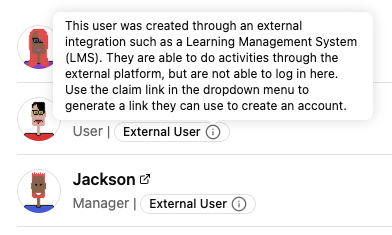
Claiming an Account
To give an external user direct access to Replay, you can generate a claim link — a one-time URL that lets them create login credentials and take ownership of their account.Find the external user
Navigate to User Management in the Manager Portal and locate the external user you want to invite.
Generate the claim link
Open the user’s dropdown menu and click Generate Claim Link. The link is copied to your clipboard automatically.
Claim links are single-use. If a link expires or isn’t used, you can generate a new one from the same dropdown menu.
Common Questions
Where do external users come from?
Where do external users come from?
External users are created automatically when someone launches a Replay activity through an LMS or other external integration. The system uses identifiers from the host platform to create the account.
What happens after a user claims their account?
What happens after a user claims their account?
Their access type changes from Integration to Dual, meaning they can access Replay both through the LMS and by logging in directly. All past and future activity is unified under one account.
Can I generate claim links in bulk?
Can I generate claim links in bulk?
Currently, claim links are generated one at a time per user from the dropdown menu in User Management.