

This guide is for Replay admins setting up analytics access via SCORM, and for LMS users who open the Tools package from their Learning Management System.
Overview
Replay provides a Tools SCORM package that gives users access to analytics dashboards directly inside your LMS. What each user sees depends on their role:- Managers and Admins see team analytics — performance metrics, activity completion rates, and individual user breakdowns for their team.
- Regular users see personal analytics — their own performance metrics and activity history.
Prerequisites
Before a user can see analytics in the LMS, two things need to be in place:- The user must have a Replay account — SCORM users are automatically created when they first open any Replay SCORM activity in their LMS. They appear under the External Users team in Replay.
- For manager access, the user must be promoted to Manager role — By default, all SCORM users are created with the User role. A Replay Admin must manually update their role to Manager to grant team analytics access.
Step 1: Promote a User to Manager (Admin Only)
Skip this step if the user only needs to see their own personal analytics.
- Log in to Replay and go to the Manager Portal.
- Find the user under the External Users team (or the team they belong to).
- Click the three-dot menu next to their name and change their role to Manager.

Step 2: Export the Tools SCORM Package (Admin Only)
- In Replay, go to Manager Portal.
- Click the Exports tab.

- Find the Tools row in the SCORM Package Exports table.
- Click Download for either SCORM 1.2 or SCORM 2004, depending on what your LMS supports.
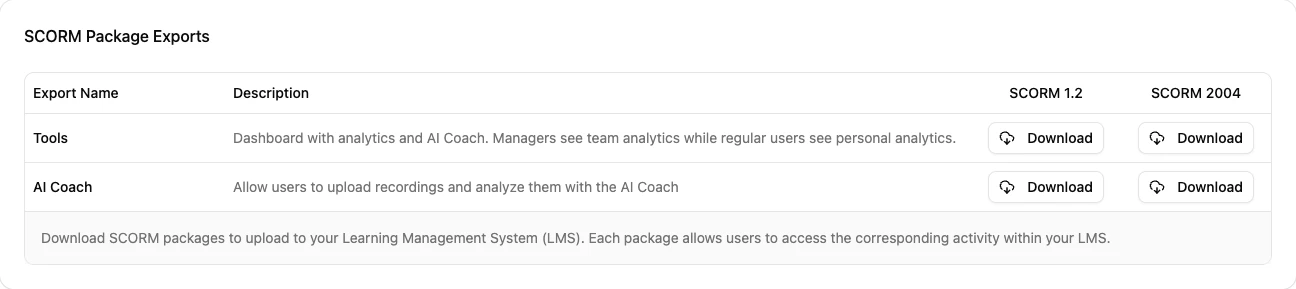
Most modern LMS platforms support SCORM 2004. If you’re unsure, check with your LMS provider or try SCORM 1.2, which has broader compatibility.
Step 3: Upload to Your LMS
Upload the downloaded SCORM package to your LMS as you would any other SCORM activity. The exact steps vary by LMS — refer to your LMS documentation or contact your LMS administrator for upload instructions. Once uploaded, the Tools activity will be available to your learners alongside your other Replay training activities.Step 4: Open the Tools Activity from Your LMS
When a user opens the Tools activity in their LMS, they will automatically see the appropriate dashboard based on their role.What Managers See
Managers and admins see the Manager Tools dashboard with access to:- Team Roleplay Analytics — View team performance metrics, activity completion rates, and individual user analytics.
- AI Coach Analytics — View team performance on AI Coach scorecards, individual criteria scores, and user leaderboards.

What Regular Users See
Users with the default User role see a personal dashboard with:- Analytics — View their own performance metrics and activity history.
- AI Coach — View their own AI Coach scorecard results and criteria scores.
Frequently Asked Questions
A user should see team analytics but only sees personal analytics
A user should see team analytics but only sees personal analytics
The user’s role in Replay is still set to User. A Replay Admin needs to promote them to Manager in the Manager Portal. See Step 1 above.
Can I use one SCORM package for both managers and users?
Can I use one SCORM package for both managers and users?
Yes. The Tools SCORM package automatically detects the user’s role and shows the appropriate dashboard. You only need to upload it once to your LMS.
How are SCORM users created in Replay?
How are SCORM users created in Replay?
SCORM users are created automatically the first time they open any Replay activity in the LMS. They are placed in the External Users team and assigned the User role by default.
Do SCORM users need a separate Replay login?
Do SCORM users need a separate Replay login?
No. SCORM users authenticate automatically through their LMS. They do not need a Replay email and password.